How to make a direct local payment
Pay a vendor, supplier, or service provider directly, without creating an expense first.
Duplo Dashboard · How-to guides · Nigeria only · Last updated
This guide provides step-by-step instructions for making a direct payment with Duplo without first creating an expense.
Direct Payments (which do not require approvals), allow you to quickly transfer funds to vendors, suppliers, or service providers while maintaining proper documentation in your accounting records. By following this simple process, you'll be able to efficiently manage payments and save valuable time while ensuring financial accuracy.
Steps
-
Log in to Duplo Dashboard
-
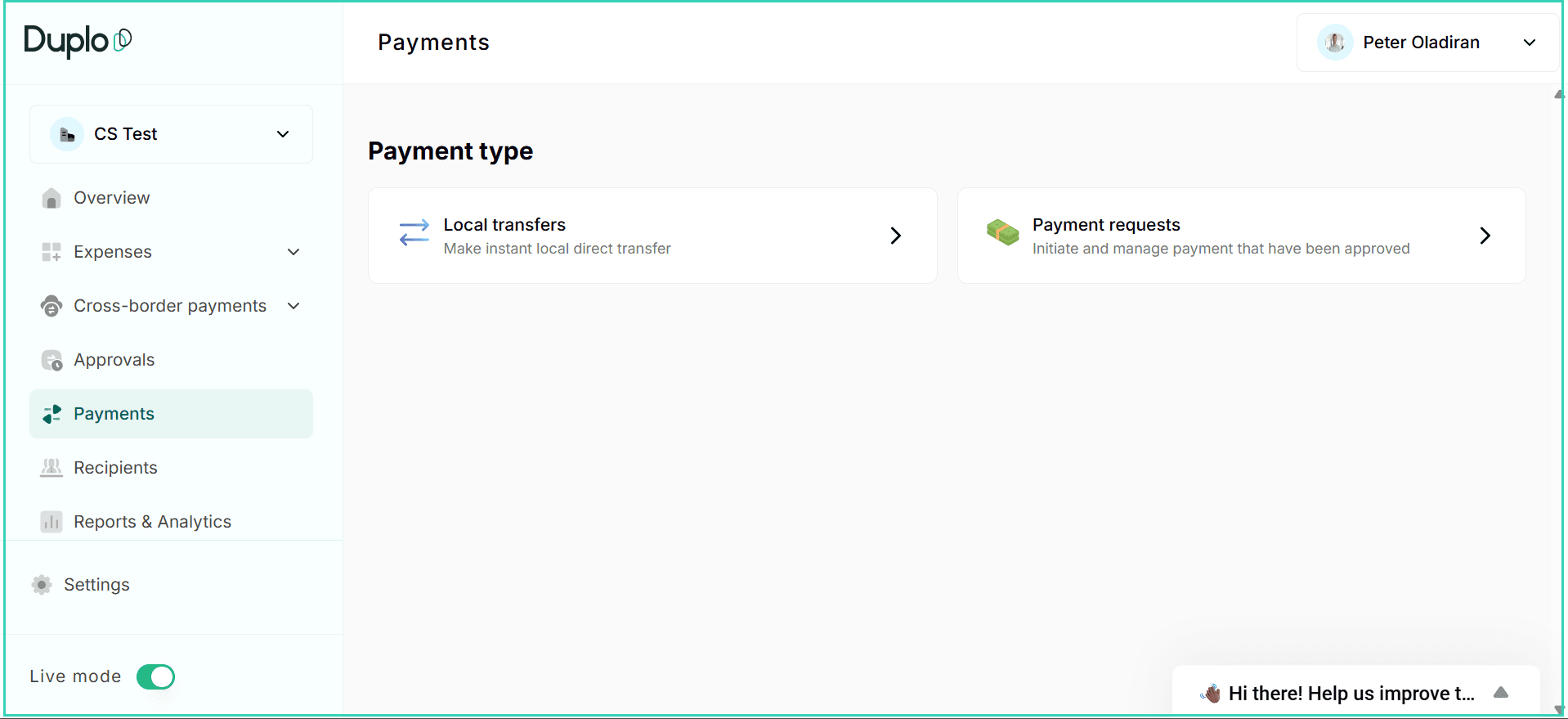
Click on “Payments”
-
Select Local transfers as shown below:
-
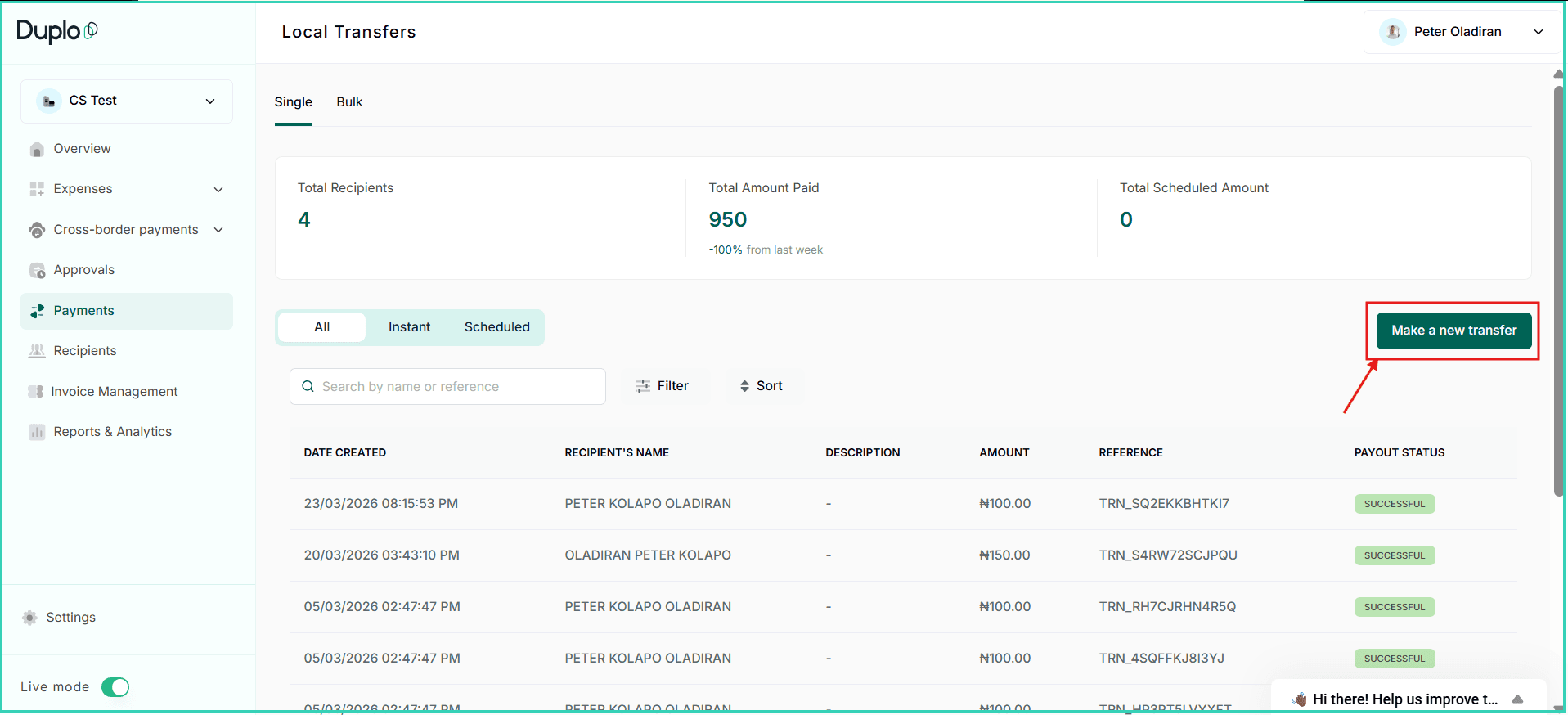
Click on “Make New Transfer” on the “single” payment section of the page as shown below
-
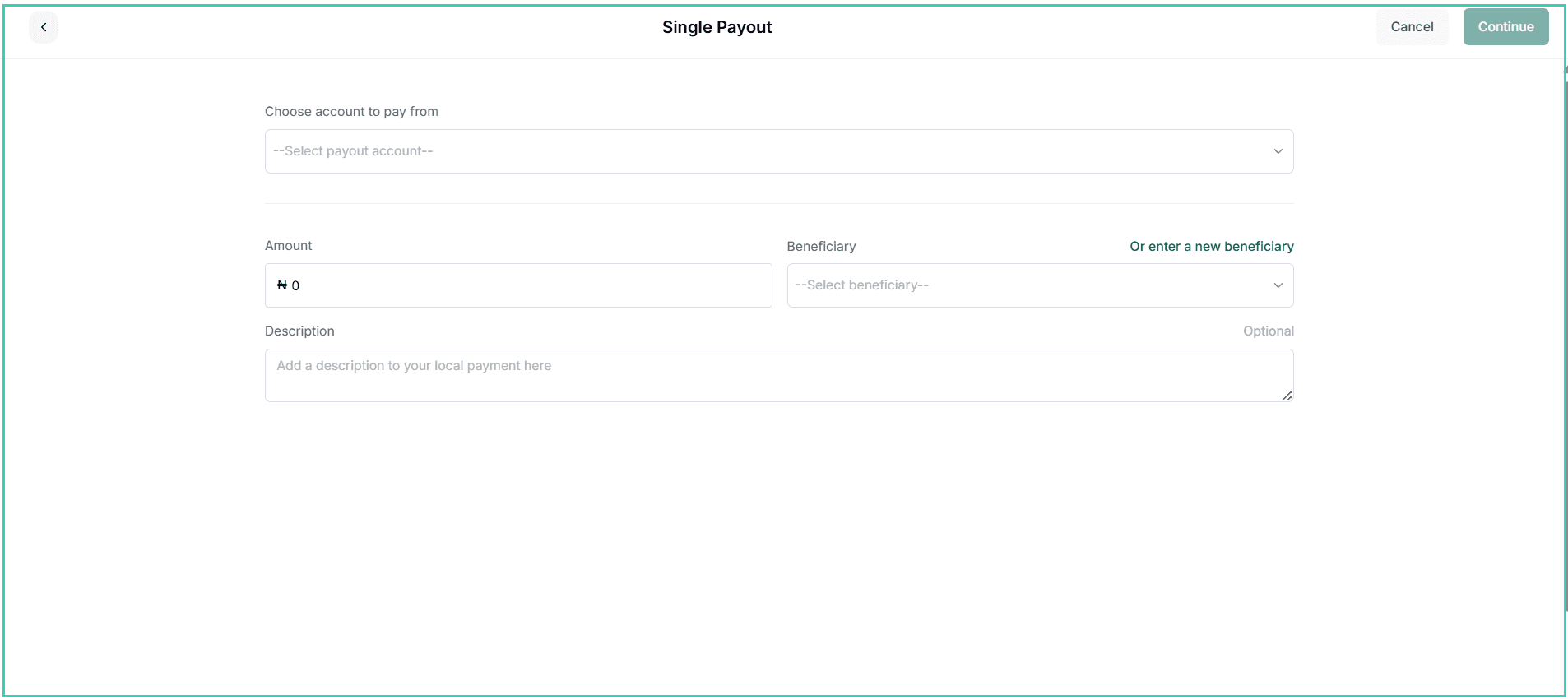
Select your payment source from these options:
- Business Wallet
- Expense Account
- Connected Banks (Direct Debit)
-
Input the rest of the required information:
- Amount
- Select a beneficiary or create a new one by clicking on “Enter a new beneficiary.”
- Description
-
Once done, click on “continue” as shown below:
-
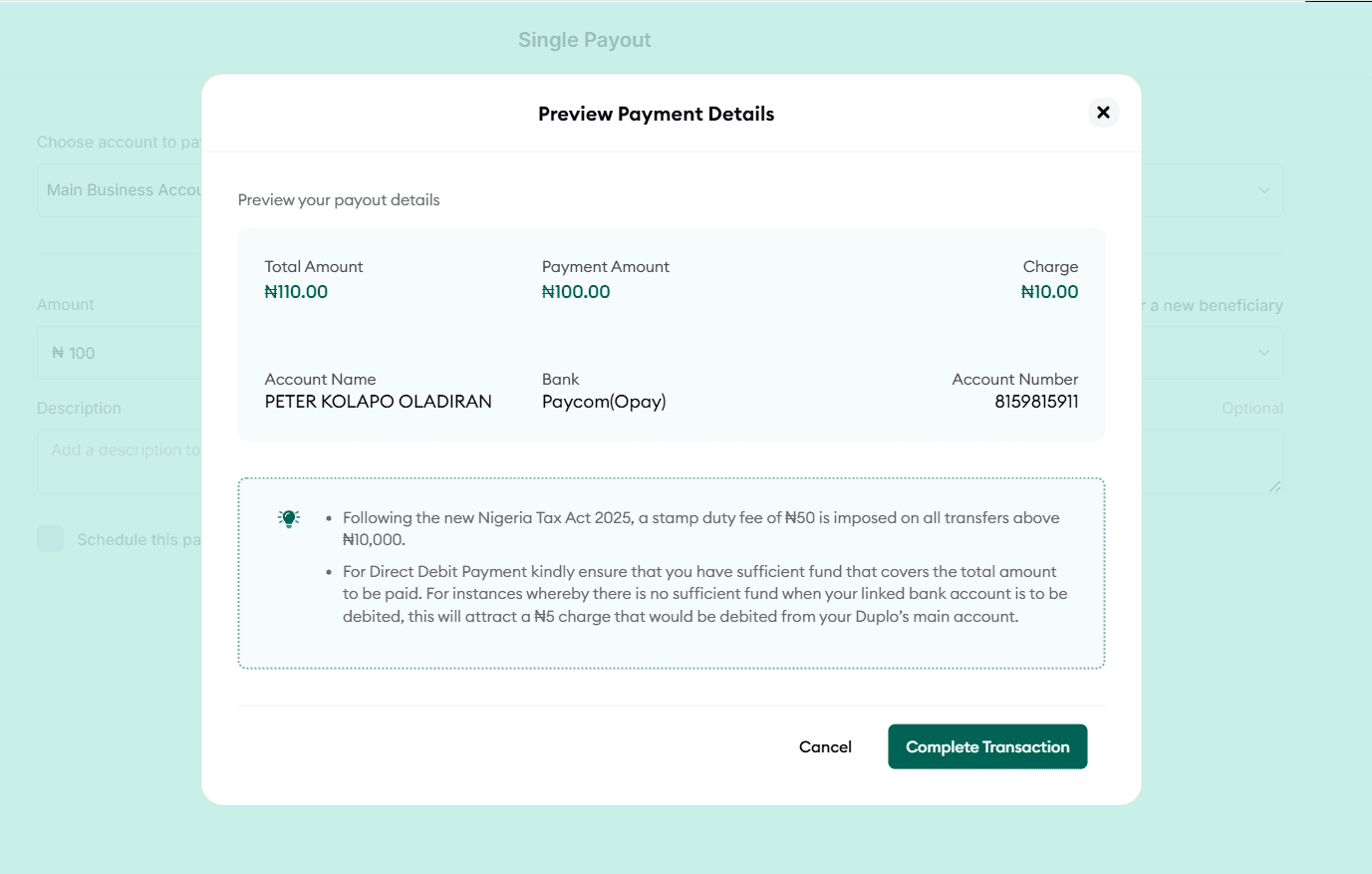
You will see a modal to confirm the payment details, as shown below.
-
Finalize with your preferred authentication method (email, google auth).
Congratulations, you have just made a successful direct local payment!
Video guide
Watch the video below for a step-by-step walkthrough on how to make a direct payment on the platform.
Frequently asked questions
Was this article helpful?
Related articles
Still need help?
Send a ticket to our support team and they will get back to you.