How to set up two-factor authentication
Protect your account with a second sign-in step.
Duplo Dashboard · How-to guides · Nigeria only · Last updated
Two-factor authentication (2FA) adds an extra layer of security to your Duplo account, ensuring that only authorized users can access sensitive business information. When you sign in, Duplo sends a one-time code to your default verification method, which is your email unless you change it. This guide shows you how to add an authenticator app, such as Google Authenticator, as another way to verify it's you.
Let’s dive in!
Steps
-
Login to your Duplo Dashboard
-
Click on Settings
-
Click on My Profile
-
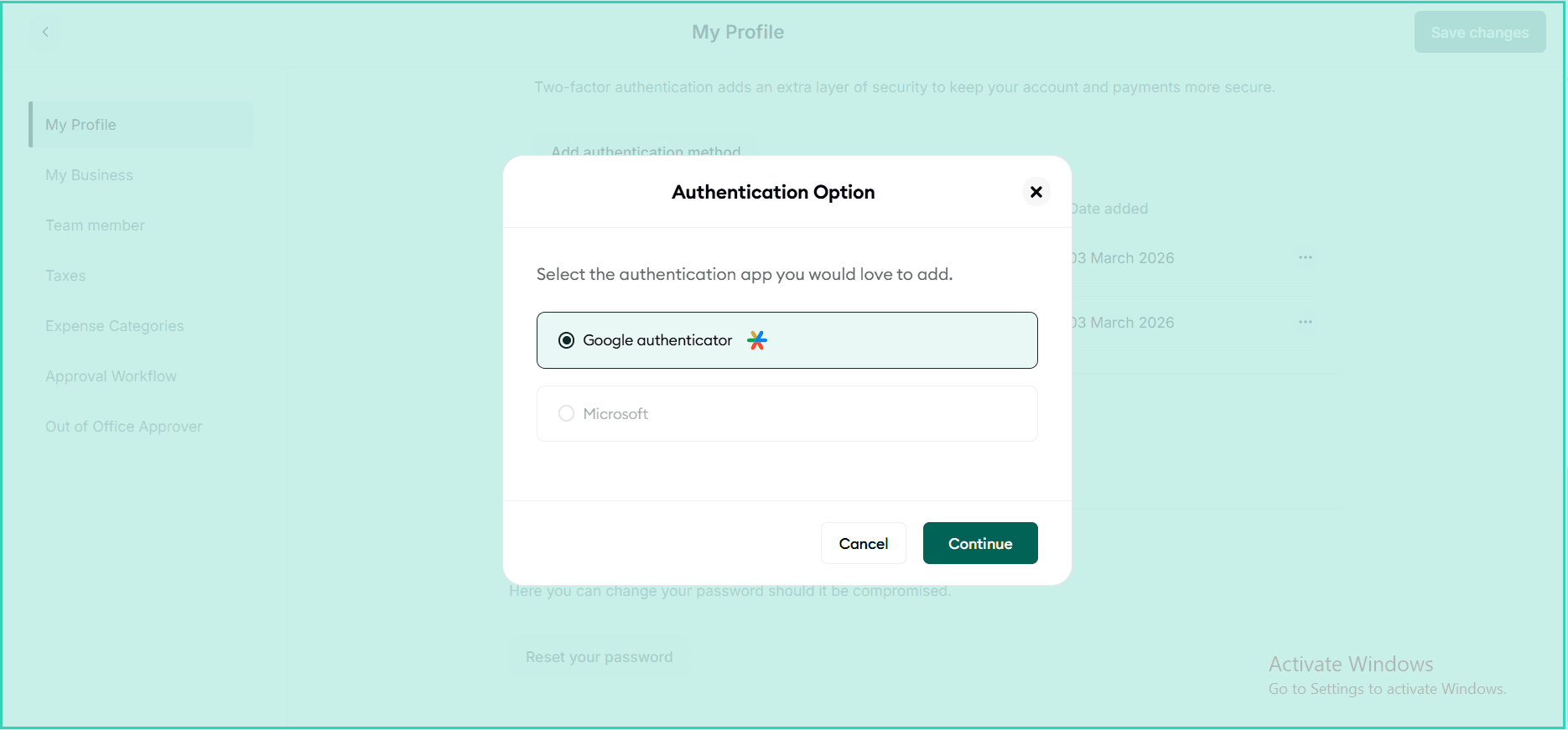
Scroll down to the 2FA setup section, click Add authentication method and select Google Authenticator, as shown below:
-
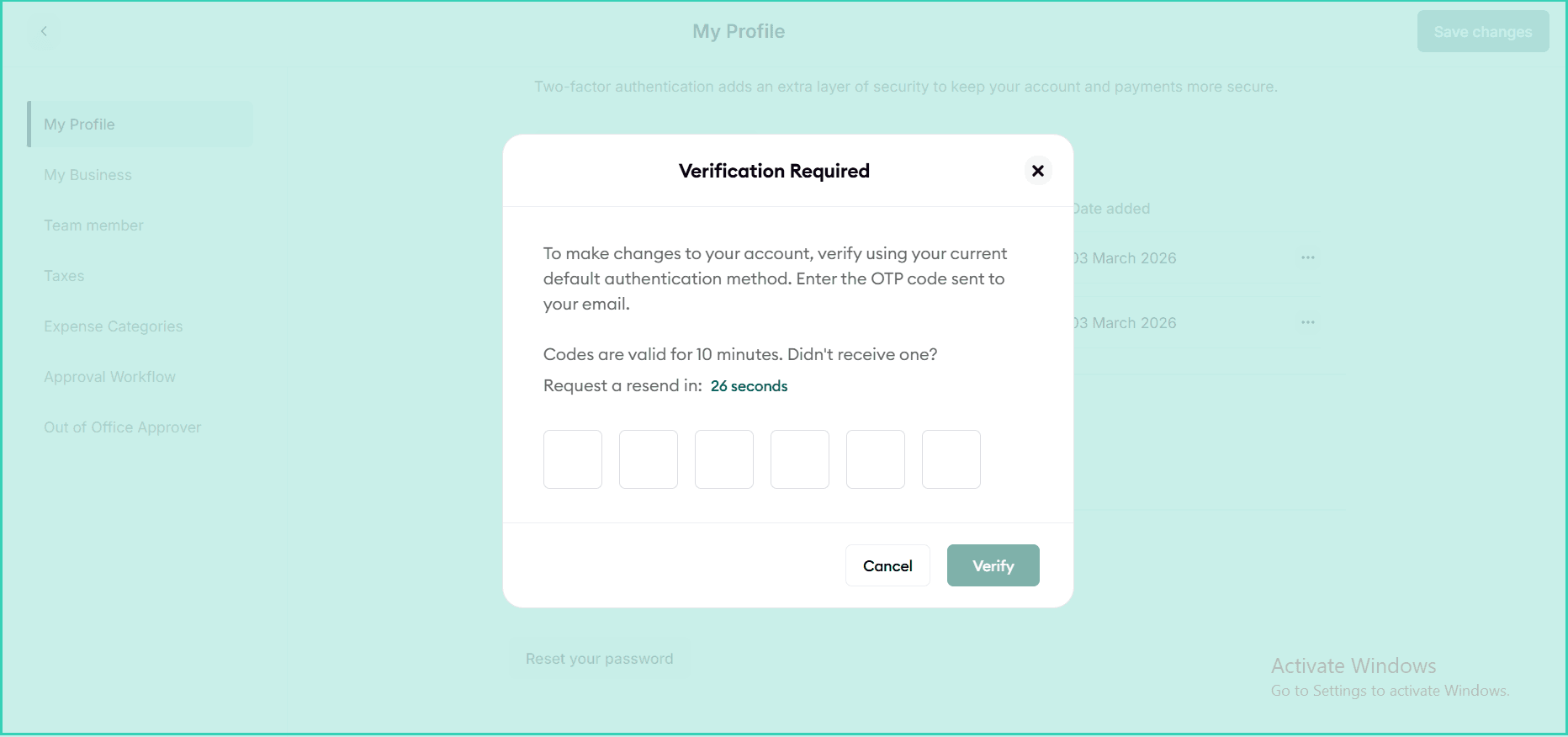
Click Continue, enter the 6-digit code sent to your email or phone number, and click Verify, as shown below:
Congratulations! You've successfully added an extra layer of security to your account.
Was this article helpful?
Related articles
Still need help?
Send a ticket to our support team and they will get back to you.