 Duplo Dashboard
Raise and Pay an Expense
Upload receipts, raise an expense into your approval workflow, and pay it from a wallet once it is approved.
An expense raised through the API goes through the same approval workflow as one raised in Duplo Dashboard, and once it is approved, the API can pay it. This guide follows one expense from receipt to payment.
The diagram shows who acts at each step, the expense's status along the way, and where the flow can stop.
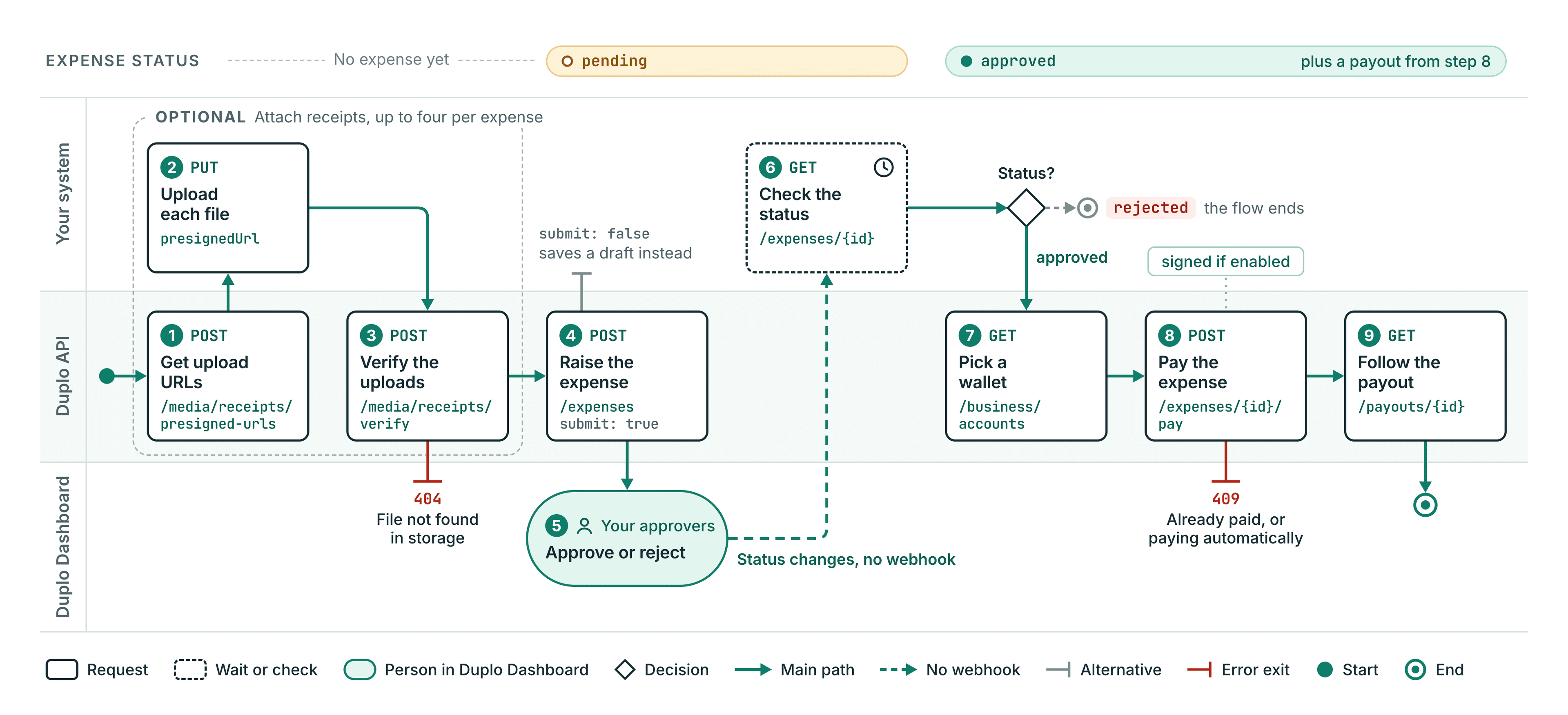
Before you start
- Expenses must be on your business's plan.
- The expense needs a recipient, the bank account it pays. Manage Recipients covers creating one.
- A tax, category, department, or custom field answers are optional. Set Up Expense Records covers those.
- Your key needs the
expenses:createscope to raise expenses and upload receipts, andexpenses:payto pay them. See Choosing scopes.
The API acts as the user who generated the key. They are the expense's submitter, and they can raise and pay only what Duplo Dashboard lets them.
Uploading receipts
Receipts are optional. An expense takes up to four, and each one must be uploaded and verified through the API first. Each file is a PNG, JPEG, WebP, HEIC, or PDF.
Start by asking for an upload URL for each file with the Get receipt upload URLs endpoint. fieldName is any name you choose for the file:
curl --request POST \
  --url https://spend-api.tryduplo.com/api/v1/media/receipts/presigned-urls \
  --header 'Authorization: Bearer <your-api-key>' \
  --header 'Content-Type: application/json' \
  --data '{
    "files": [
      { "fileName": "taxi-receipt.png", "fieldName": "receipt", "contentType": "image/png" }
    ]
  }'
Each entry in the response carries a presignedUrl to upload to, a key and a mediaId to verify with, and expriesAt, when the URL stops working:
{
  "statusCode": 201,
  "message": "Upload the files to the URLs, then verify them",
  "data": [
    {
      "presignedUrl": "https://storage.example.com/receipt/taxi-receipt.png?X-Amz-Signature=...",
      "fileName": "taxi-receipt.png",
      "fieldName": "receipt",
      "key": "f3f3c6a1-45e3-44aa-b05a-1fbe98d52d09/receipt/taxi-receipt.png",
      "mediaId": "0e6f1b9a-2c47-4d3e-8b5a-7f9c1d2e3a4b",
      "expriesAt": "2026-11-16T09:45:00.000Z"
    }
  ]
}
Upload the file with a PUT to presignedUrl, sending the same Content-Type you declared and no Authorization header:
curl --request PUT \
  --url '<presignedUrl>' \
  --header 'Content-Type: image/png' \
  --data-binary @taxi-receipt.png
Then confirm the uploads with the Verify uploaded receipts endpoint, sending each key and mediaId:
curl --request POST \
  --url https://spend-api.tryduplo.com/api/v1/media/receipts/verify \
  --header 'Authorization: Bearer <your-api-key>' \
  --header 'Content-Type: application/json' \
  --data '{
    "verifyMedia": [
      {
        "key": "f3f3c6a1-45e3-44aa-b05a-1fbe98d52d09/receipt/taxi-receipt.png",
        "mediaId": "0e6f1b9a-2c47-4d3e-8b5a-7f9c1d2e3a4b"
      }
    ]
  }'
The response gives each receipt's fileUrl. That is the value an expense's receipt array takes. Verifying a file that was never uploaded returns 404 with File not found in storage, and one that belongs to another business returns 400.
Raising the expense
Make a request to the Raise an expense endpoint. As before, anything without a comment is required:
curl --request POST \
  --url https://spend-api.tryduplo.com/api/v1/expenses \
  --header 'Authorization: Bearer <your-api-key>' \
  --header 'Content-Type: application/json' \
  --data '{
    "currency": "NGN",
    "date": "2026-11-14",
    "recipientId": "98d34e0c-69dc-4683-9bbe-6e6921ed155c",
    "description": "Airport transfer for the Abuja site visit",
    "expenseCategoryId": "c8a1f0e2-6d3b-4b7a-9e15-2f4d6a8c0b13",
    "items": [
      { "description": "Taxi to the airport", "quantity": 1, "price": 25000, "currency": "NGN" }
    ],
    "receipt": [
      "https://storage.example.com/f3f3c6a1-45e3-44aa-b05a-1fbe98d52d09/receipt/taxi-receipt.png"
    ],
    "customFields": { "project_code": "OPS-2026-14" },
    "submit": true
  }'
You do not send an amount. Duplo works it out from the line items, each a quantity at a price per unit, with an optional unit and an optional taxId for that line. Line item descriptions take 5 to 500 characters.
submit decides what happens next. true submits the expense for approval and it starts as pending. false saves it as a draft with status saved, and it is not sent for approval.
On a successful request, you should receive a response similar to the one below:
{
  "statusCode": 201,
  "message": "Expense submitted for approval",
  "data": {
    "id": "7b2e9c41-5d8a-4f36-a1c0-3e6b9d2f8a57",
    "businessId": "f3f3c6a1-45e3-44aa-b05a-1fbe98d52d09",
    "amount": 25000,
    "currency": "NGN",
    "description": "Airport transfer for the Abuja site visit",
    "status": "pending",
    "date": "2026-11-14",
    "claimReimbursement": false,
    "receipt": [
      "https://storage.example.com/f3f3c6a1-45e3-44aa-b05a-1fbe98d52d09/receipt/taxi-receipt.png"
    ],
    "expenseCategory": { "name": "Travel and Transport" },
    "recipient": { "accountName": "ADA OBI" },
    "createdAt": "2026-11-16T09:31:27.402Z"
  }
}
The API always pays a recipient, so reimbursement claims are not supported: claimReimbursement must be left out or false.
| Response | Cause |
|---|---|
400 with receipt must be a verified receipt upload of this business | A receipt URL was not verified, or belongs to another business |
404 | The recipient, tax, category, or department is not one of your business's, in the key's mode |
422 with Recipient is deactivated, Tax is deactivated, Expense category is deactivated, or Department is deactivated | The record exists but is switched off |
422 with a message per custom field | A required custom field is missing, or an answer does not fit its field |
Waiting for approval
A submitted expense follows your business's approval workflow, and the people who approve expenses accept or reject it in Duplo Dashboard. Nothing calls you when they do, so read the expense back with Get an expense by id, or list expenses with status=approved as covered in Read Your Expenses, until its status is approved or rejected.
Paying the expense
Once the expense is approved, pay it from one of your wallets. Get business accounts lists them, and filters by walletType and currency. It returns business wallets unless you ask for another type, such as walletType=expense for expense accounts. The wallet must belong to the key's mode, so a test key pays only from test wallets.
Then make a request to the Pay an approved expense endpoint with the wallet's id:
curl --request POST \
  --url https://spend-api.tryduplo.com/api/v1/expenses/7b2e9c41-5d8a-4f36-a1c0-3e6b9d2f8a57/pay \
  --header 'Authorization: Bearer <your-api-key>' \
  --header 'Content-Type: application/json' \
  --data '{ "walletId": "123e4567-e89b-12d3-a456-426614174000" }'
If you turned on signed requests, this call must be signed, and the example there shows how.
To withhold tax from the payment, send witholdTax: true, spelled as shown. Duplo then withholds each line item's own tax and pays the recipient the rest. A taxId on the payment is only recorded on the expense and does not change the amount.
The response describes the payout the payment created. Its id is the payout id, so pass it to Get a payout to follow the money to the recipient. The sample below is abbreviated:
{
  "statusCode": 200,
  "message": "Expense payment initiated",
  "data": {
    "id": "4a9d2e7f-1b3c-4e8a-9f60-5c2d7e1b8a34",
    "expenseId": "7b2e9c41-5d8a-4f36-a1c0-3e6b9d2f8a57",
    "amount": 25000,
    "currency": "NGN",
    "payoutCategory": "wallet",
    "isPayoutInitiated": true,
    "recipient": {
      "accountName": "ADA OBI",
      "accountNumber": "0123456789",
      "bankCode": "000013",
      "bankName": "Guaranty Trust Bank"
    }
  }
}
An expense is paid once. A second call returns 409 with Payout already initiated, so if a call times out, read the expense or its payout back before trying again. If your business pays approved expenses automatically, a call while that payment is running returns 409 with Automatic payment in progress.
| Response | Cause |
|---|---|
404 | The expense is not one of your business's, or walletId is not one of its wallets in the key's mode |
409 with Payout already initiated | The expense has already been paid |
409 with Automatic payment in progress | Automatic payments is paying or retrying this expense |
422 with Expense is not approved | The expense is still pending, was rejected, or is a draft |
422 with Tax is deactivated | The taxId you sent is switched off |
Related guides
How is this guide?
Last updated on