How to add team members
Invite your colleagues to your Duplo account and give them a role.
Duplo Dashboard · How-to guides · Nigeria only · Last updated
Adding team members is a crucial step in managing your business operations effectively on Duplo. This guide will walk you through the process of adding team members to your Duplo account, helping you streamline your workflow and maintain proper access control. By setting up team members, you'll be able to collaborate efficiently and securely with your colleagues, employees, or other business partners.
Let’s dive in!
Steps
-
Log into your Duplo Dashboard
-
Click on Settings
-
Click on Team Members then click on New Team member
-
Enter their email address and choose a role. You can also add a job title and department. Choose a plan for the seat, then click Send Invite, as shown below:
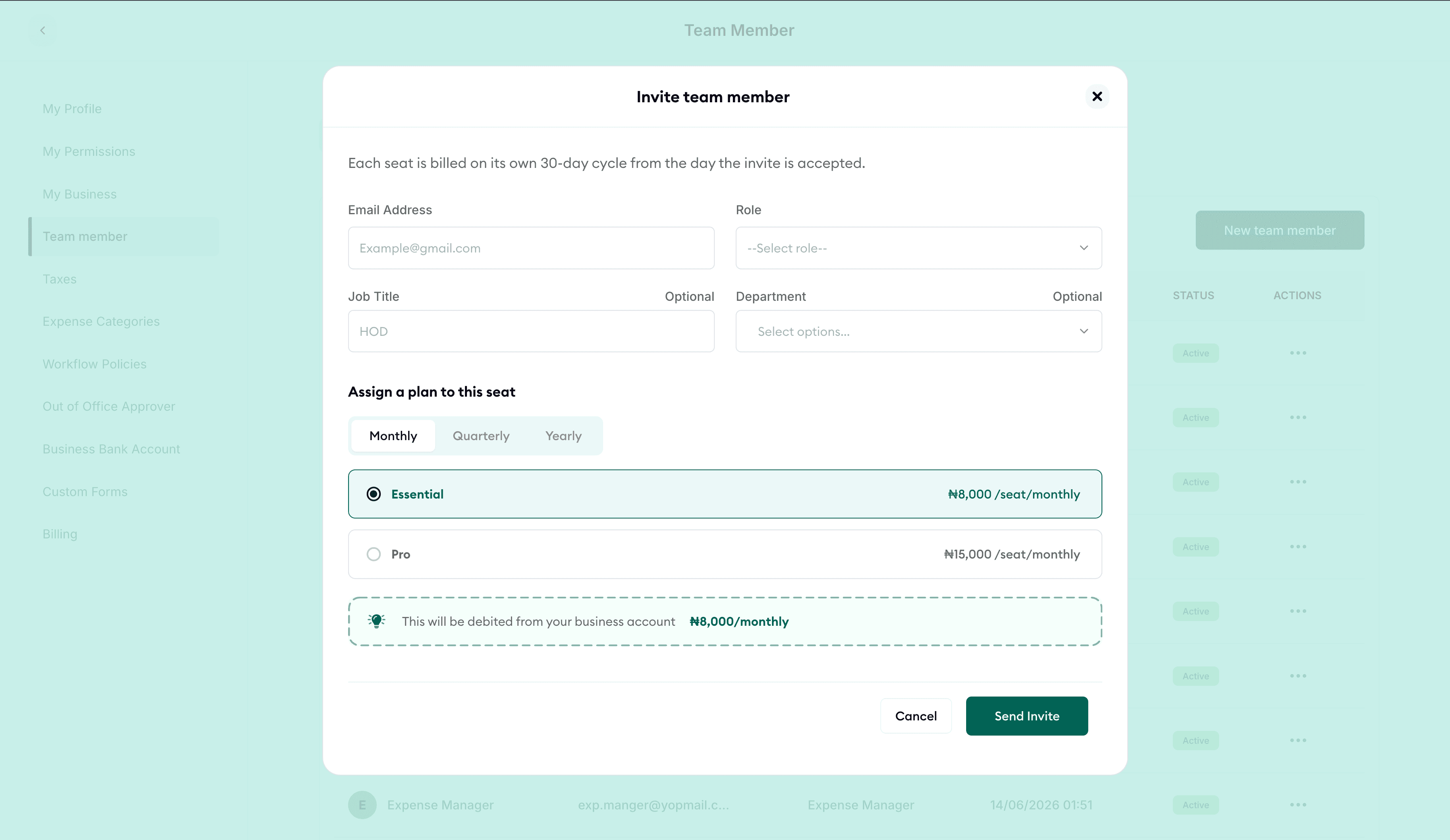
Each seat is billed to your business account on its own 30-day cycle, starting from the day the invite is accepted.
You have successfully invited a team member. Learn what each default role can do.
Note: The people you have invited will need to set up their accounts and sign in for their roles to be active. Learn how invited users set up their accounts.
Frequently asked questions
Was this article helpful?
Related articles
- How to add a new business or sub-locationAdd another business or a sub-location to your Duplo account.
- How to assign an out-of-office approverChoose a team member to approve reports submitted to you while you're away.
- How to create a departmentCreate a department, add a head of department, and manage its expenses.
Still need help?
Send a ticket to our support team and they will get back to you.