How to pay an expense
Pay an expense after it has been approved.
Duplo Dashboard · How-to guides · Nigeria only · Last updated
Once an expense is raised, an approver must approve it before payment can be made. This guide will walk you through processing and paying expenses on our platform.
Whether you're handling reimbursements or company expenditures, you'll find everything you need here. Let's get started!
Steps
-
Log in to Duplo Dashboard
-
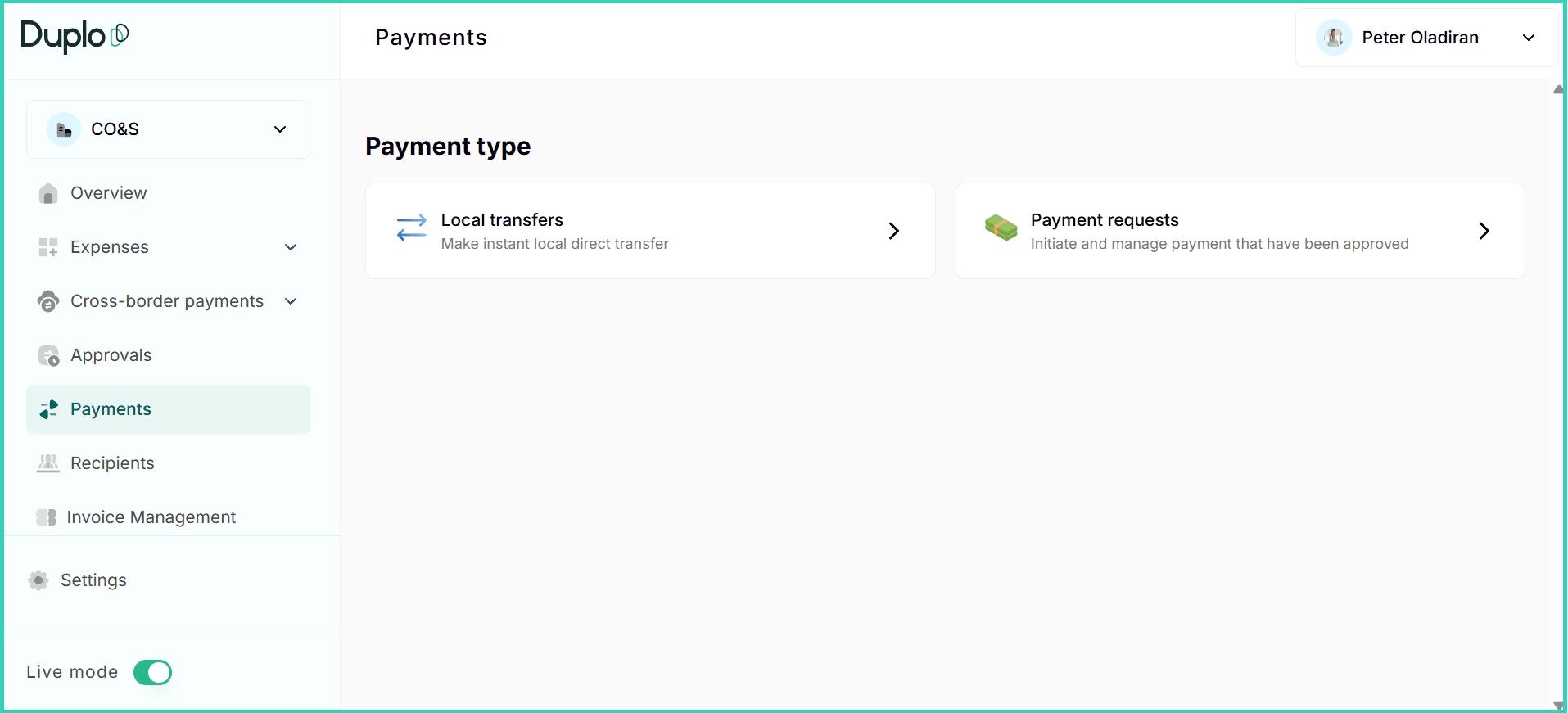
Click on “Payments”
-
Click on Payment Requests as shown below:
-
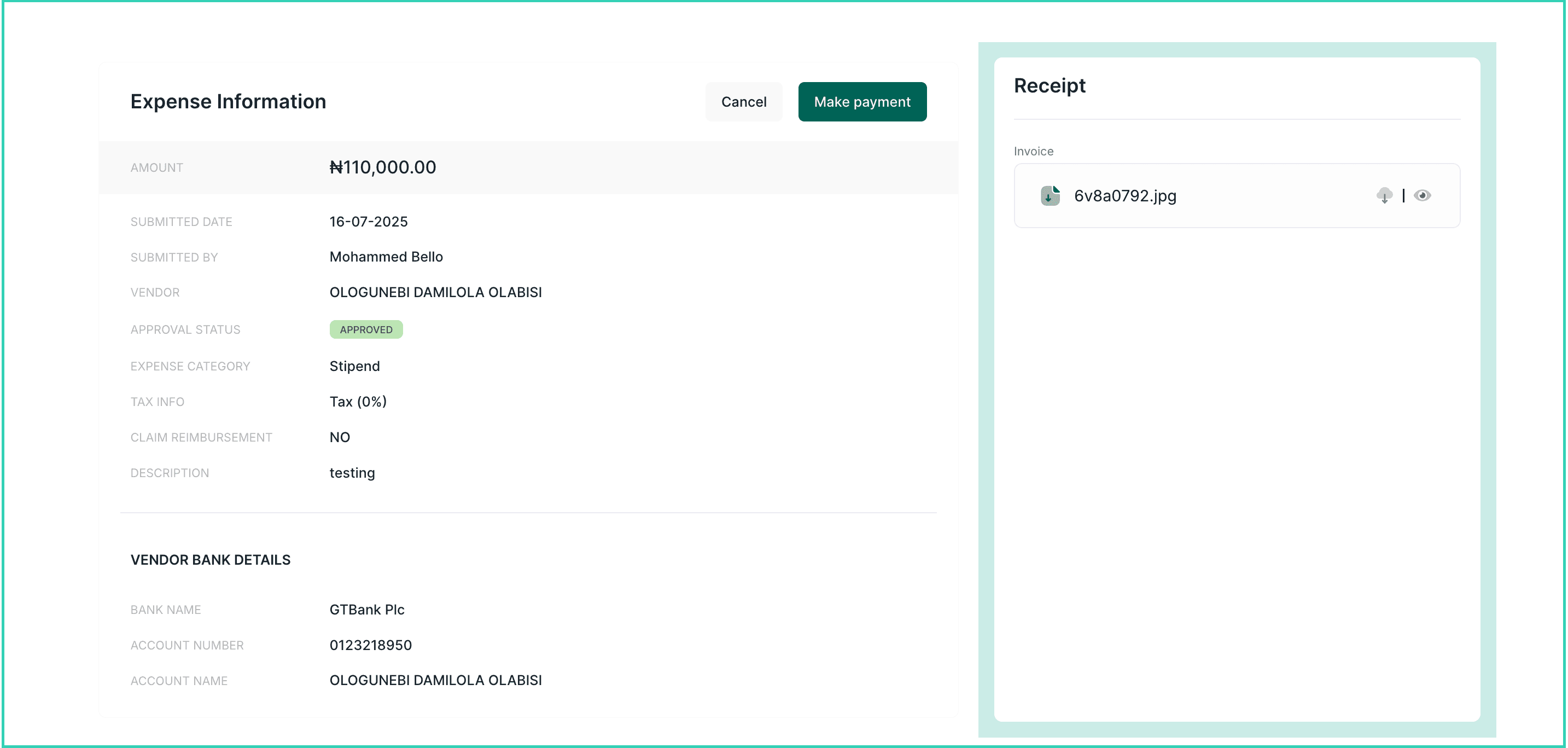
On the Unpaid tab, click on any expense you want to pay.
-
Review the details and click on "Make Payment" as shown below.
-
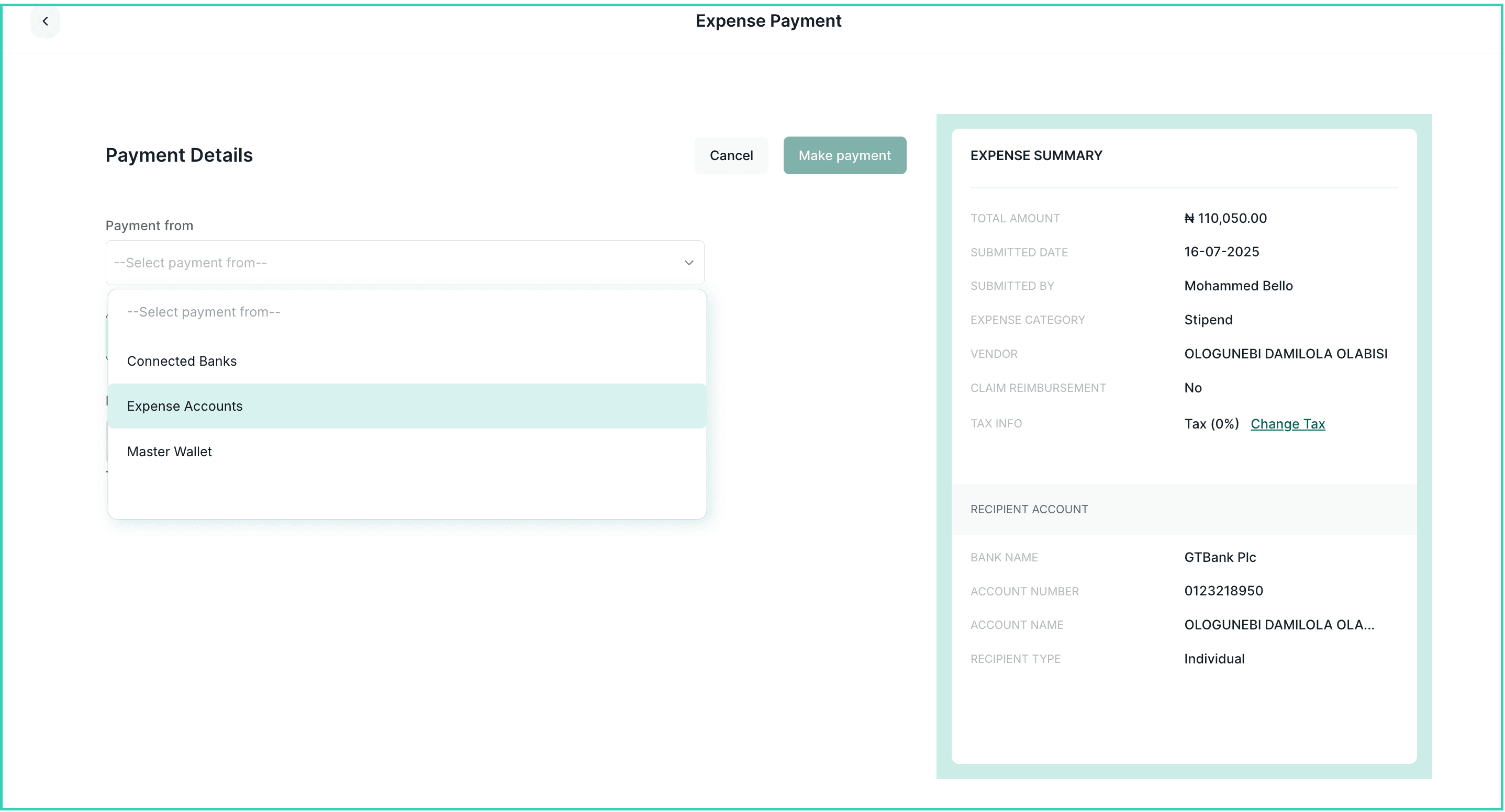
Select your payment source from these options:
1.Business wallet
2. Expense Account
3. Connected Banks (Direct Debit); as shown below:
-
Once you've made your selection, click on "Make Payment".
-
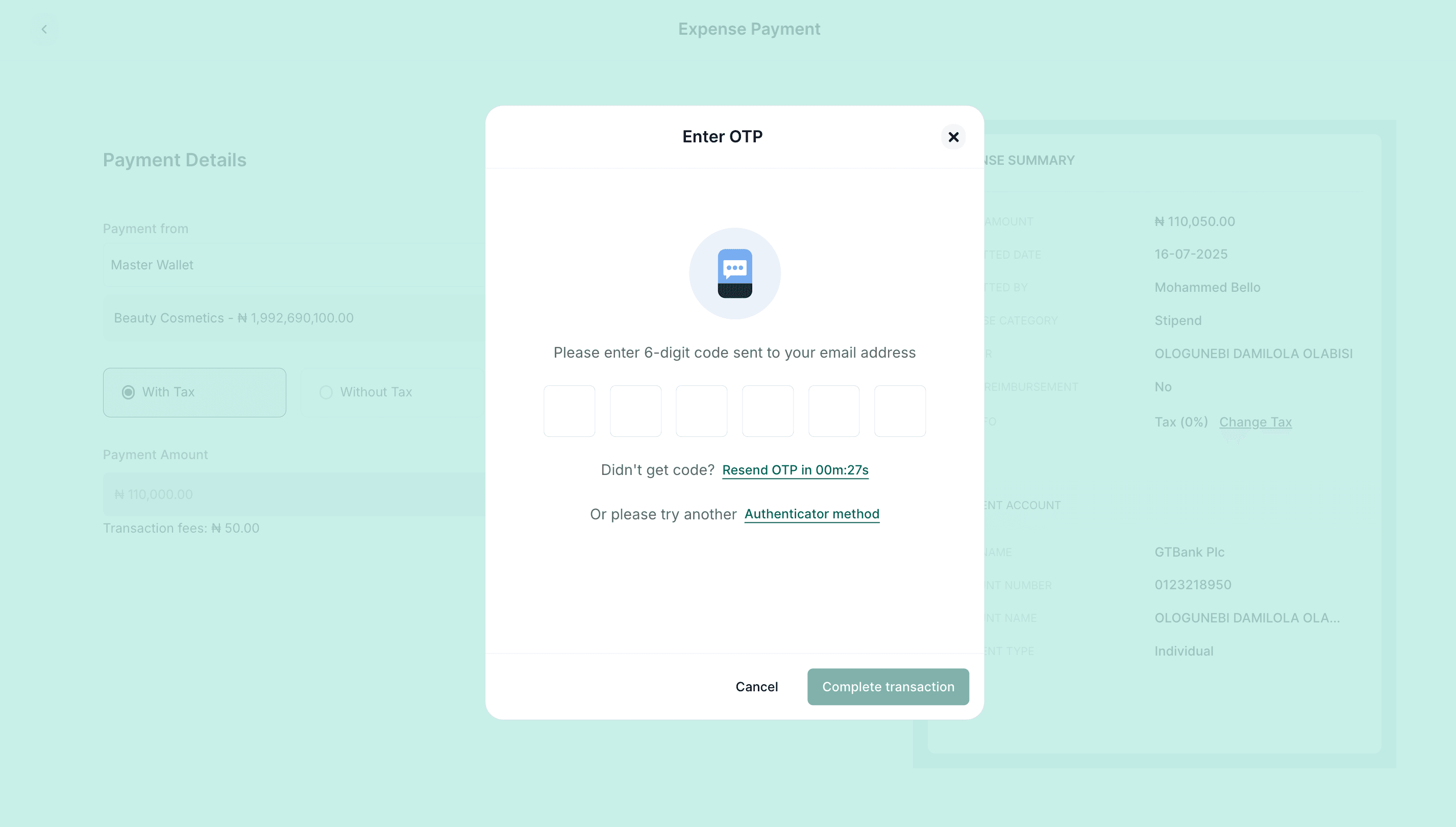
A preview page will appear. Click on "Complete Transaction".
-
Finalize the payment by authenticating with your chosen method, and click on "Complete Transaction" again. As shown below:
Your expense has been successfully paid! You will be redirected to the payment request page, where you can track the payment status.
Video guide
Watch the video below for a step-by-step walkthrough on how to pay an expense on the platform.
Was this article helpful?
Related articles
- How to create an expense accountSet up an expense account to allocate funds for specific purposes and track spending.
- How to create an expense categoryAdd categories so every expense is grouped the way your business reports it.
- How to make multiple expense paymentsPay several approved expenses at the same time.
Still need help?
Send a ticket to our support team and they will get back to you.