How to set up an approval workflow
Decide who approves expenses before they're paid.
Duplo Dashboard · How-to guides · Nigeria only · Last updated
Approval workflows are essential for maintaining control and accountability in your business operations. With Duplo, setting up an approval workflow ensures that expenses and transactions go through the right checks before being finalized. This guide will walk you through the steps to set up an efficient approval workflow, helping you streamline decision-making and maintain proper oversight.
Let’s dive in!
Steps
-
Login to your Duplo Dashboard
-
Click on Settings, click Workflow Policies, and select Approval workflow.
-
Click on Create Workflow
-
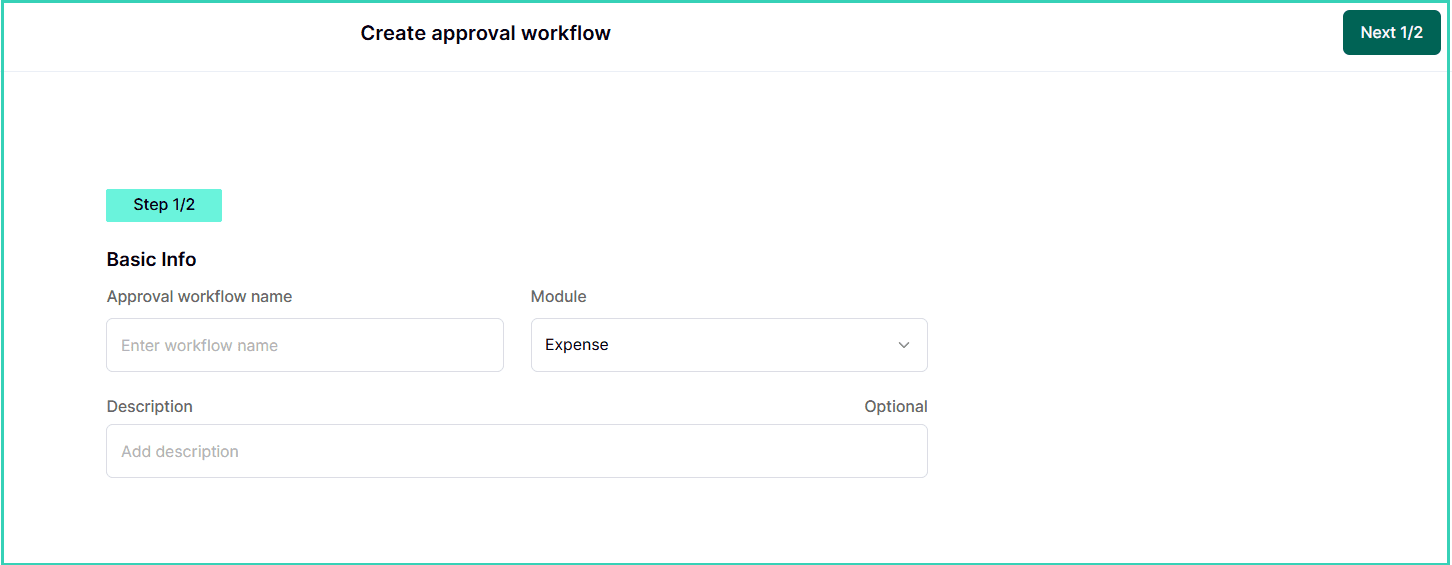
You will be directed to name the workflow and add a description (optional) as shown below:
-
Click on Next
-
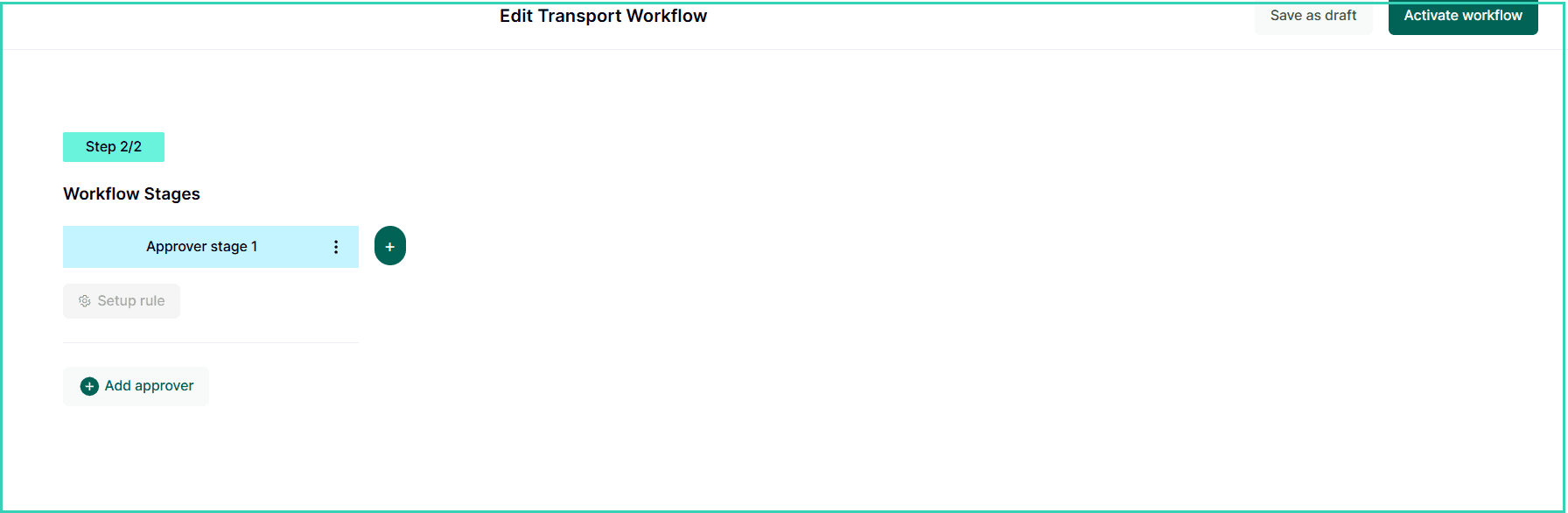
Name and modify the workflow stages to align with your business needs.
-
To rename or delete stages, click on the three dots beside the first stage as shown above.
-
To add more stages, click on the plus (+) sign as shown above.
-
To add approvers to each stage, click on Add Approver. A drop-down menu of users with the approver role will appear for you to select from. Learn how to add team members.
-
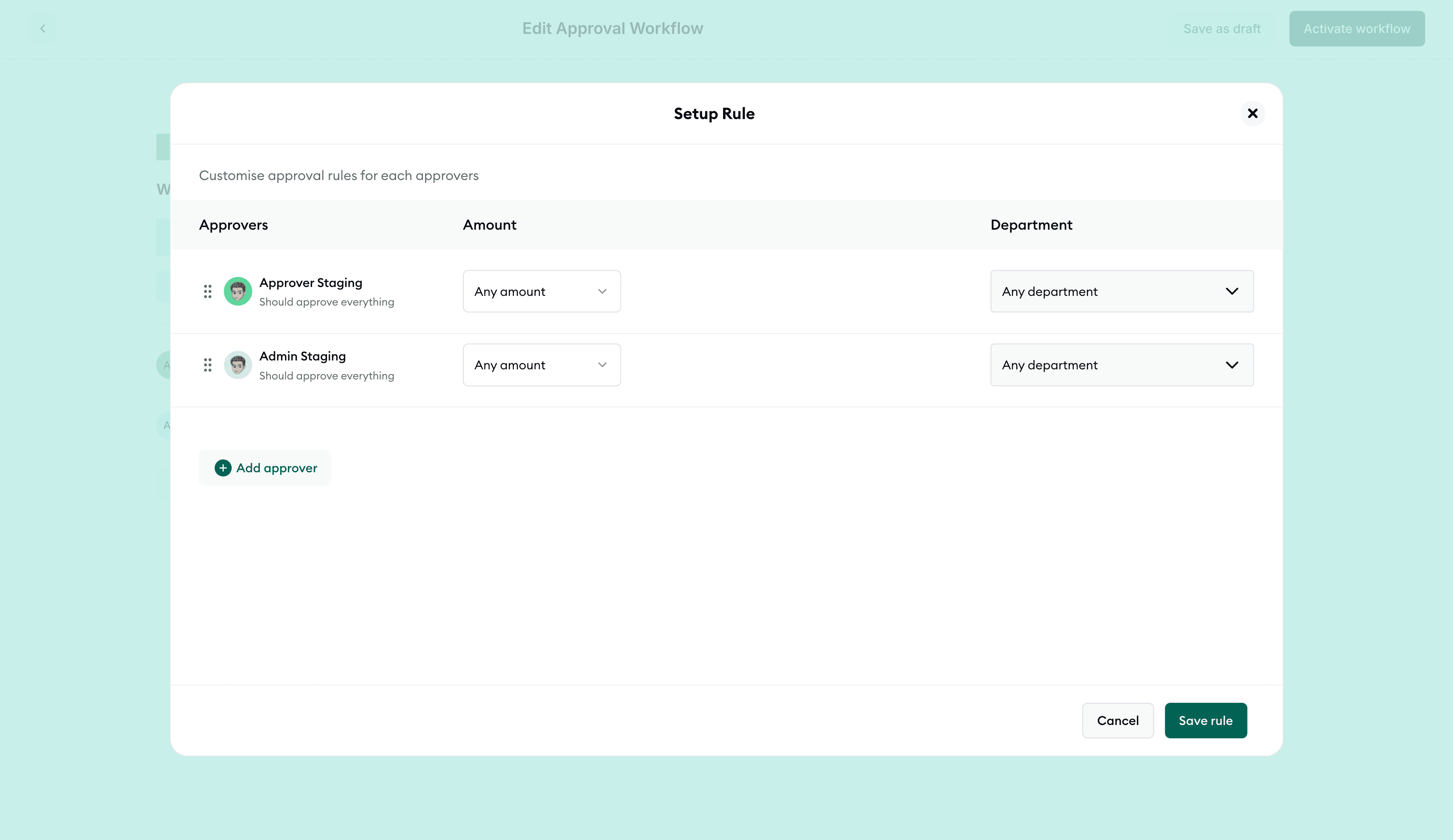
Once you've added an approver, you can set up a rule. This allows you to modify what an approver can do at each stage. For example, you might want an approver to only handle expenses from the sales department and approve amounts between ₦100–₦100,000. This means expenses from the product department won't appear on that approver's board, and expenses above ₦100,000 won't be sent to that approver. After setting up the rule, click Save rule, as shown below:
-
Click on Activate workflow to finish the process.
Congratulations! You've successfully set up a workflow for your business. You can now create expenses that go through the workflow. Learn how to raise an expense.
Frequently asked questions
Was this article helpful?
Related articles
- How to add a new business or sub-locationAdd another business or a sub-location to your Duplo account.
- How to add team membersInvite your colleagues to your Duplo account and give them a role.
- How to assign an out-of-office approverChoose a team member to approve reports submitted to you while you're away.
Still need help?
Send a ticket to our support team and they will get back to you.